AFGUtT Setup: Step By Step
-
Make sure you have the following software installed and ready to go.
- Fantasy Grounds Unity using the 5e Ruleset
- The AFGUtT FGU extension from the FGU Forge
- The AFGUtT Local Client (Purchase Here)
- The AFGUtT Twitch Extension installed and activated on your Twitch Channel (if applicable).
-
Set up the FGU Extension
- In FGU, enable the Alynn's FGU to Twitch Exporter Extension.

- Load up your campaign.
- All Characters need owners.
- All characters need to be in the party sheet.
- All characters need to be in the Combat Tracker.
- Configure the AFGUtT Export Options to "On".

- Check your Campaign Folder in Fantasy Grounds and you should see a characters.xml and a tracker.xml file.
- In FGU, enable the Alynn's FGU to Twitch Exporter Extension.
-
If you plan on using the Twitch Extension, go to AFGUtT Self Serve Portal and create an account. Please use a legitimate email or else the account creation process will fail.
-
Configure the Local Client
- In the folder where you unzipped the AFGUtT Local Client is a config.toml file, open it in a text editor of choice.
- If you wish, do File -> Save As (or your editor's equivilent) and save a copy of the file for future reference.
- Follow along with the comments in the toml file to configure the settings for the client.
- By default the local client will always reference config.toml, however you can specify a different config file by using the command line option -cfg <filename>.toml
- Start up the local client (see the readme) and it should take the configuration you provided and start watching the files created by FGU.
- At this point you should go into FGU Combat Tracker and click Next Character once. This should export the data based on the configuration (text files for local, to the middleware for online).
- If you are only using AFGUtT locally and not using the Twitch Extension you are done.
-
In the configuration page of the AFGUtT you only need to use the registration email you created in step 3, then hit submit.

- If Server Status has failed it means that the extension was unable to reach the server. This could mean a network issue between you and the middleware server, or that the server is no longer reachable. You may just need to wait and try again.
- If Data Status has failed it means that we were either unable to pull character data from the extension because the email was incorrect, there has been no data uploaded to the server, or an internal server issue.
- If you haven't, make sure you have done step 4-7 and successfully exported the data to the middleware. The local client will show any errors if there were any to the web server.
- If you are unable to get both to green, please contact Alynn (yelloweyedstudio@gmail.com.
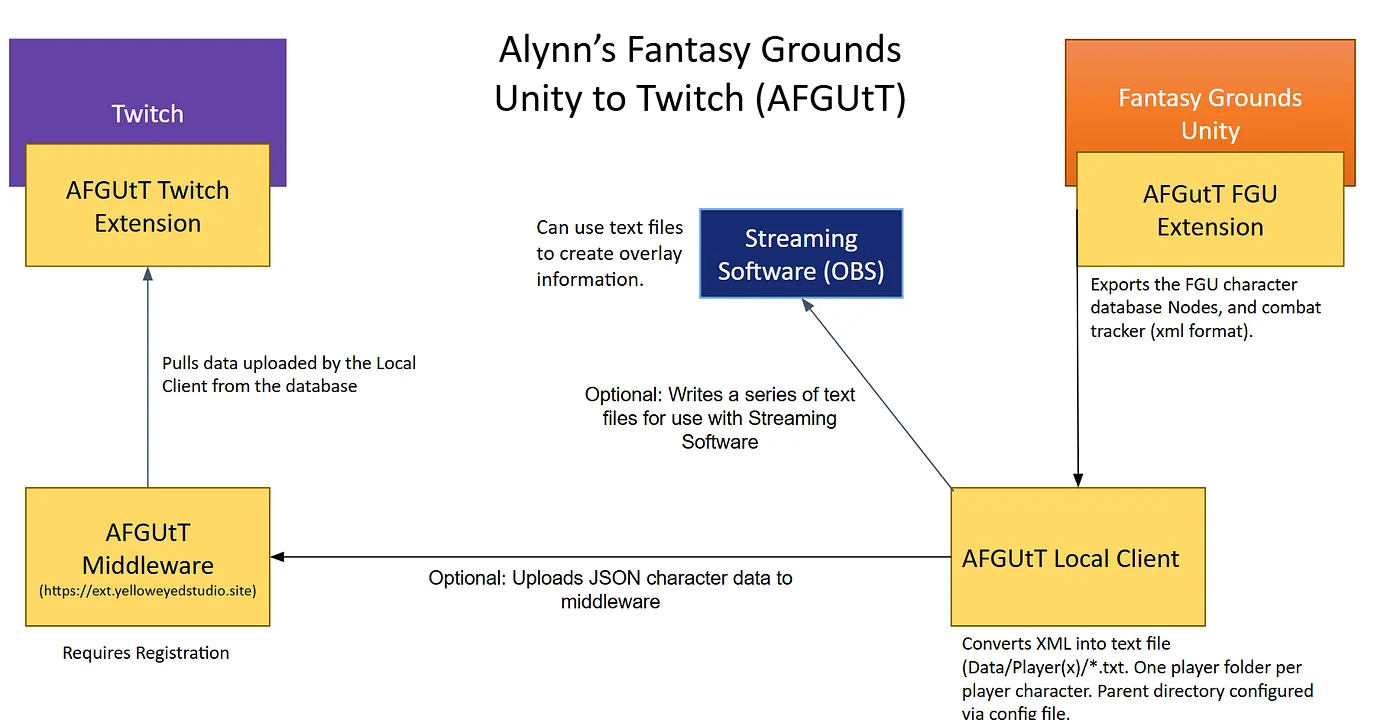
- At this point you should be fully good to go. When changes are made within FGU and the next character button is hit, the data is then exported by FGU. The Local Client then writes text files and/or uploads the data to the middleware server. The Twitch extension then reaches to the middleware server and pulls the data for display to the viewers.
- If you run into any issues that you can't figure out please reach out to yelloweyedstudio@gmail.com